
Volunteering
The Volunteer section of the User Portal is where you find volunteer shifts, sign up to help out, and keep track of the credits you earn.
Becoming a Volunteer
Section titled “Becoming a Volunteer”You can’t just sign up for shifts right away. There are a few steps to become a volunteer:
Step 1: Sign the Volunteer Agreement
Section titled “Step 1: Sign the Volunteer Agreement”Go to the Agreements section of the portal and sign the Volunteer Agreement. This agreement explains the rules, how credits work, the code of conduct, and what happens if you don’t show up. Read it carefully before signing.
Step 2: Get Approved In Person
Section titled “Step 2: Get Approved In Person”
After you sign the agreement, a FundedYouth administrator must approve you. This happens in person — not through the portal. The administrator will:
- Review your signed agreement
- Meet you and make sure you’re a good fit
- Assign the Volunteer role to your account
Until an administrator approves you, the Volunteer menu will not appear in your portal.
Step 3: Start Volunteering
Section titled “Step 3: Start Volunteering”Once you’re approved, the Volunteer section shows up in your portal menu with two tabs:
- Available Timeslots — where you browse and sign up for shifts
- My Credits — where you track your credit balance and history
Age Rules for Volunteers
Section titled “Age Rules for Volunteers”| Age | What You Need |
|---|---|
| 18 or older | Sign the agreement yourself |
| 13 to 17 | Your parent or guardian must also read and agree. You’ll need to provide their name and email when signing. |
| Under 13 | Same as above, plus your parent or guardian must be with you at all times while volunteering at FundedYouth |
Available Timeslots
Section titled “Available Timeslots”This is where you find volunteer shifts you can sign up for. There are two ways to browse:
Card View
Section titled “Card View”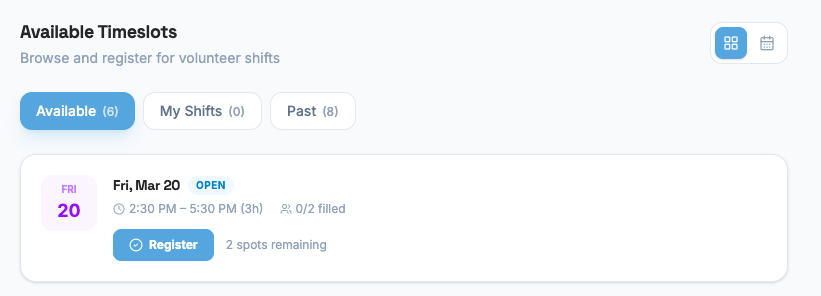
The default view shows each timeslot as a card with:
- Date — A colored badge showing the day of the week and date (e.g., “MON 15”)
- Time — Start time, end time, and total hours (e.g., “2:00 PM – 4:00 PM (2h)”)
- Description — What the shift involves (if provided)
- Spots — How many volunteer slots are filled and how many are left (e.g., “3/5 filled — 2 spots remaining”)
- Status — A colored badge showing if the shift is Open, Full, Completed, or Cancelled
Calendar View
Section titled “Calendar View”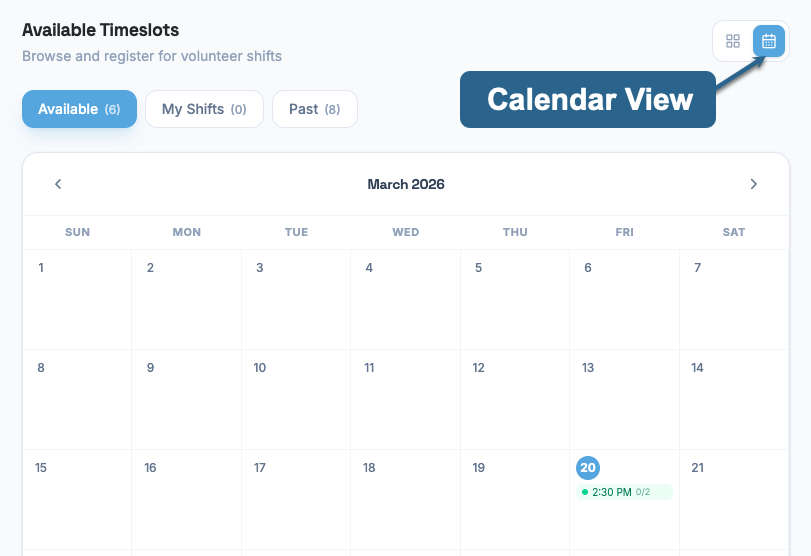
You can switch to a calendar view to see shifts laid out on a monthly grid. Each day shows:
- Small colored dots for each timeslot on that day
- The time of each shift
- A capacity indicator (e.g., “2/5”)
- If there are more than 3 shifts on one day, it shows “+N more”
Click on any dot to open a detail panel with the full shift information.
Color guide:
Open — You can sign up for this shift
Registered — You’re already signed up for this shift
Full — No spots left
Completed — This shift already happened
Cancelled — This shift was cancelled
The timeslots page has three tabs:
Available
Section titled “Available”Shows open shifts in the future that you haven’t signed up for yet. Each one has a Register button. The tab shows a count of how many are available (e.g., “Available (5)”).
My Shifts
Section titled “My Shifts”Shows shifts you are currently signed up for. Each one has a Cancel Registration button. This is where you go to see what’s coming up.
Shows shifts that have already happened. For each past shift, you’ll see:
- Completed — with how many credits you earned (e.g., “Completed — 4 credits earned”)
- No-Show — with the penalty applied (e.g., “No-Show — 4 credit penalty”)
Signing Up for a Shift
Section titled “Signing Up for a Shift”To sign up for a volunteer shift:
From Card View:
- Go to the Available tab.
- Find a shift that works for you.
- Click the Register button on the card.
- You’re signed up! The shift moves to your My Shifts tab.
From Calendar View:
- Find a shift on the calendar and click the colored dot.
- This opens the same shift detail card below the calendar — it does not register you right away.
- Review the shift details (date, time, spots remaining, etc.).
- Click the Register button on the card to sign up.
You can only register if:
- The shift is Open (not full, completed, or cancelled)
- The shift date is today or in the future
- There are spots remaining
Cancelling a Shift
Section titled “Cancelling a Shift”If you can’t make it to a shift, you should cancel as early as possible. Here’s how:
- Go to the My Shifts tab.
- Find the shift you want to cancel.
- Click Cancel Registration.
- A popup will appear — read it carefully.
Safe to Cancel
Section titled “Safe to Cancel”If you’re cancelling with enough notice (at least 2 days before the shift by default), you’ll see this:
Click Confirm Cancel and you’re done. No credits lost. Click Keep Shift if you change your mind.
Penalty Warning
Section titled “Penalty Warning”If you’re cancelling too close to the shift date (within the notice window), you’ll see a warning:
You can still cancel, but you might lose credits. Click Cancel Anyway if you’re sure, or Keep Shift to stay registered.
My Credits
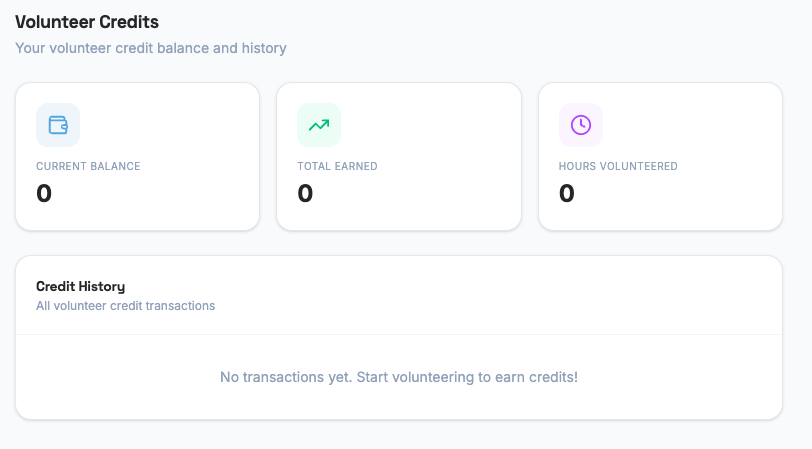
Section titled “My Credits”The My Credits tab shows your volunteer credit balance and full history.
Summary Cards
Section titled “Summary Cards”At the top, you’ll see three cards:
| Card | What It Shows |
|---|---|
| Current Balance | How many volunteer credits you have right now |
| Total Earned | All the credits you’ve earned from volunteering (lifetime total) |
| Hours Volunteered | Total hours you’ve spent volunteering |
If your balance is negative (from penalties), it shows in red.
Credit History
Section titled “Credit History”Below the cards, a table shows every credit transaction. Each row includes:
| Column | What It Shows |
|---|---|
| Type | A colored icon — green for earned, red for penalty, amber for redeemed, gray for adjustment |
| Description | Details about the transaction (which shift, which perk, etc.) |
| Date | When it happened |
| Amount | How many credits were added (+) or removed (-) |
| Balance | Your balance after this transaction |
Transaction Types
Section titled “Transaction Types”Here’s what each type means:
Hours Earned — You completed a shift and earned credits
No-Show Penalty — You missed a shift without cancelling
Redemption — You spent credits on a perk or reward
Adjustment — An administrator added or removed credits manually
How Credits Are Calculated
Section titled “How Credits Are Calculated”When you complete a volunteer shift, your credits are calculated based on the length of the shift:
Credits earned = Hours worked x Credits per hour
By default, you earn 2 credits per hour. So a 3-hour shift earns you 6 credits.
The system automatically awards credits after a shift is completed. You don’t need to do anything — just show up and complete your shift.
No-Show Penalty
Section titled “No-Show Penalty”If you sign up for a shift and don’t show up — and you didn’t cancel through the portal or email within the cancellation window — you will lose credits.
Here’s an example:
Let’s say you sign up for a 5-hour shift. At 2 credits per hour, you would have earned 10 credits. But you don’t show up and you didn’t cancel in time. Instead of earning 10 credits, the system takes away 10 credits from your balance.
No-show penalty = the same number of credits you would have earned
Yes, your balance can go negative. If you only had 3 credits and got a 10-credit penalty, your balance would drop to -7 credits. You would need to volunteer more to bring it back up.
Important Rules
Section titled “Important Rules”- Cancel at least 2 days before your shift. FundedYouth needs to know ahead of time if you can’t make it. When you sign up for a shift, the team is counting on you to be there. If you don’t show up without warning, one of the board members has to stop what they are doing and cover your shift. That takes them away from their own work. Giving at least 2 days notice lets the team find someone else or adjust the schedule so everything runs smoothly.
- Cancel through the portal or by email. If you can’t get to the portal, send an email to FundedYouth before the cancellation window closes. Either way works — just make sure you let us know.
- Volunteer credits are separate from membership wallet credits. They are two different systems. You can’t mix them.
- Credits are a bonus, not payment. Volunteering at FundedYouth is a nonpaid position. Credits are something FundedYouth offers as a thank-you — they are not money and they are not required. FundedYouth can change or stop the credit system at any time.
Next Steps
Section titled “Next Steps”- Learn about FYBIT Credits and how the two credit systems work
- View all Agreements including the Volunteer Agreement