
Profile
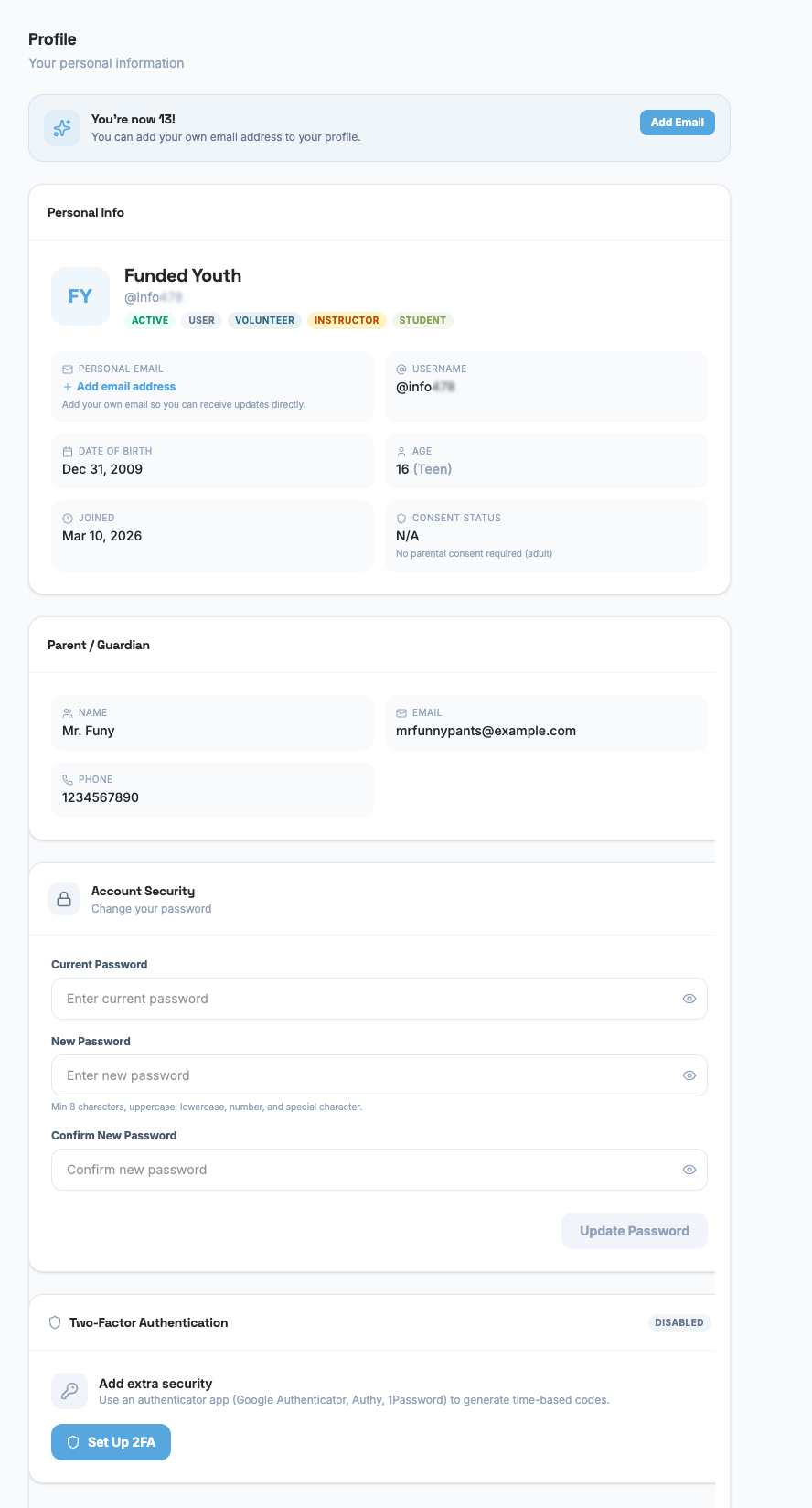
The Profile page is where you manage your personal information, change your password, and set up extra security for your account.
Your Profile Photo
Section titled “Your Profile Photo”At the top of the page, you’ll see your profile photo (or your initials if you haven’t uploaded one yet).
- To upload a photo: Hover over the photo area and click the camera icon. Pick an image from your device (JPEG, PNG, or WebP).
- To remove your photo: Click the small X button in the corner of your photo.
Your photo shows up throughout the portal wherever your name appears.
Personal Information
Section titled “Personal Information”Below your photo, you’ll see a card with your basic info:
| Field | What It Shows |
|---|---|
| Name | Your full name |
| Username | Your @handle (this is set when your account is created) |
| Date of Birth | Your birthday |
| Age | Your current age and age group (child, teen, or adult) |
| Join Date | When your account was created |
| Consent Status | Whether parental consent has been verified (for users under 18) |
You cannot change your name, username, or date of birth from this page. If something is wrong, ask a FundedYouth administrator to update it for you.
Email Address
Section titled “Email Address”What you see for email depends on your age:
If you are under 13
Section titled “If you are under 13”- You’ll see your parent or guardian’s email labeled as your account email.
- You cannot add your own email yet. Your parent manages your account.
If you are 13 to 17
Section titled “If you are 13 to 17”- You can add a personal email address by clicking “Add email address.”
- This is your own email, separate from your parent’s. Adding it means you’ll get updates sent directly to you.
- A helpful note will remind you to add one if you haven’t yet.
If you are 18 or older
Section titled “If you are 18 or older”- You can add a personal email as an optional secondary email.
- This is separate from the email you use to log in.
Parent / Guardian Information
Section titled “Parent / Guardian Information”If you are under 18 (or if your account was originally created as a minor), you’ll see a card showing your parent or guardian’s information:
- Parent/Guardian Name
- Parent Email
- Parent Phone Number
Removing Parent Information (18+ only)
Section titled “Removing Parent Information (18+ only)”When you turn 18, a banner will appear letting you know you can remove your parent or guardian’s information from your profile. This is completely optional — you don’t have to remove it.
If you choose to remove it:
- Click the Remove button on the parent/guardian card.
- A confirmation popup will appear warning you that this is permanent and cannot be undone.
- Click Confirm to remove it, or Cancel to keep it.
Once removed, your parent or guardian will no longer receive notifications about your account.
Role Badges
Section titled “Role Badges”Next to your name, you’ll see colored badges showing your roles:
You can have more than one role at the same time. Roles are assigned by a FundedYouth administrator.
Changing Your Password
Section titled “Changing Your Password”The Account Security section lets you change your password. Here’s how:
- Enter your current password — the one you use to log in right now.
- Enter a new password — it must meet all of these rules:
- At least 8 characters long
- At least one uppercase letter (A–Z)
- At least one lowercase letter (a–z)
- At least one number (0–9)
- At least one special character (like ! @ # $ % ^ & *)
- Confirm your new password — type it again to make sure it matches.
- Click Update Password.
If everything is correct, you’ll see a green message saying “Password updated successfully.” If your current password is wrong, you’ll see a red error message.
Each password field has a show/hide button (the eye icon) so you can check what you typed.
Two-Factor Authentication (2FA)
Section titled “Two-Factor Authentication (2FA)”Two-factor authentication adds an extra layer of security to your account. When 2FA is turned on, you’ll need both your password and a code from an authenticator app to log in.
What You’ll See
Section titled “What You’ll See”- If 2FA is off: You’ll see a button to “Set Up 2FA” with a description of what it does.
- If 2FA is on: You’ll see a green shield icon and a message saying “2FA is active” along with how many recovery codes you have left.
- If you are an admin or instructor: 2FA is required. The badge will say “Required” in red instead of “Disabled.”
Setting Up 2FA
Section titled “Setting Up 2FA”- Click Set Up 2FA.
- A QR code will appear on screen.
- Open your authenticator app (like Google Authenticator, Authy, or 1Password) and scan the QR code.
- If you can’t scan it, click “Can’t scan?” to see a secret key you can type in manually.
- Click I’ve scanned it — Continue.
- Your authenticator app will now show a 6-digit code that changes every 30 seconds. Type that code into the box.
- Click Verify & Enable.
- You’ll see a list of recovery codes. These are backup codes you can use if you ever lose access to your authenticator app.
- Click Copy All Codes to copy them to your clipboard, then paste them somewhere safe.
- Click Done.
Turning Off 2FA
Section titled “Turning Off 2FA”- Click Disable 2FA.
- A warning message will explain what happens. For admin or instructor accounts, it will warn you that 2FA will be required again the next time you log in.
- Click Send Code — a 6-digit verification code will be sent to your email.
- Check your email and enter the code.
- Click Disable 2FA to confirm.
Getting New Recovery Codes
Section titled “Getting New Recovery Codes”If you’re running low on recovery codes (or used some already), you can get new ones:
- Click Regenerate Recovery Codes.
- Enter the current 6-digit code from your authenticator app.
- Click Regenerate.
- Your old recovery codes stop working and new ones are shown.
- Copy and save the new codes.
A yellow warning will appear when you have 2 or fewer recovery codes left, reminding you to regenerate.
Next Steps
Section titled “Next Steps”- Learn about the User Portal Dashboard
- See all available Agreements you may need to sign